iPhone & iPad · Scans stay on your device
Scan a document. Get a PDF.
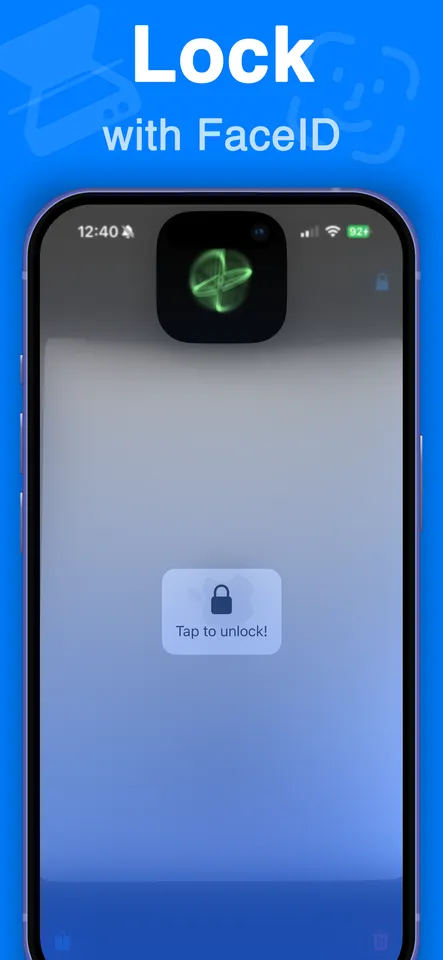
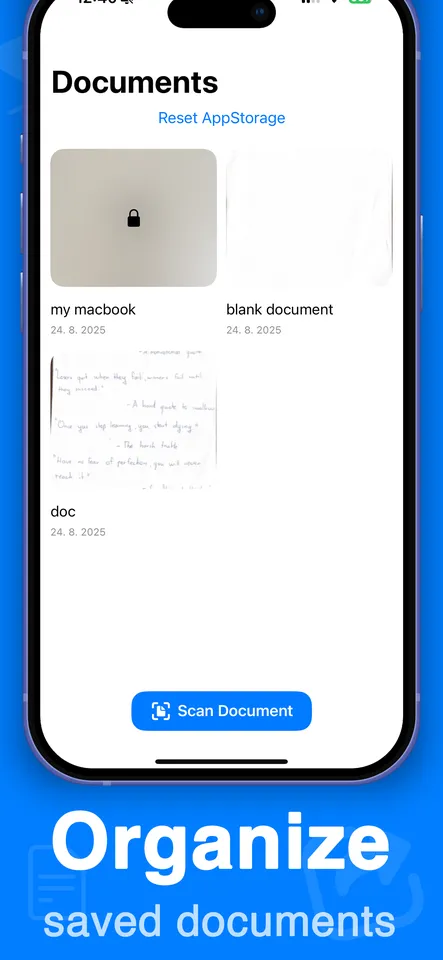
Document Scanner turns your iPhone camera into a scanner: point it at a page, it finds the edges, and you get a clean PDF. Documents are stored on your device, organised into folders, and can be locked behind Face ID.
A scanner, not a camera roll full of photos
It finds the page for you
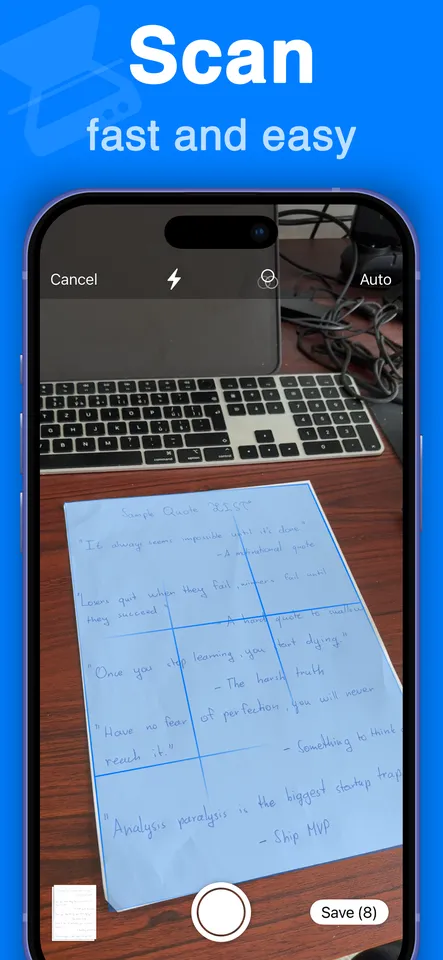
Point the camera at a document and the edges are detected automatically, then straightened and cropped. You are not trimming corners by hand afterwards.
Multi-page in one go
Keep shooting and the pages stack up in the same document, in order. A twelve-page contract comes out as one file, not twelve.
Export to PDF
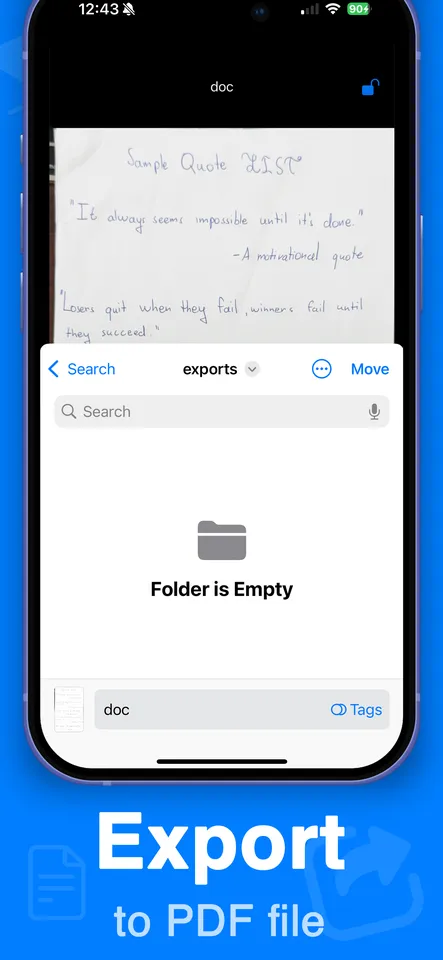
Every document exports as a proper PDF, into its own folder, ready to attach to an email or upload to a form that will not accept a photo.
Lock it with Face ID
Documents can be locked behind Face ID, so a payslip or a passport scan is not sitting in the open on an unlocked phone.
Organised, not dumped
Scans are saved inside the app with names and dates and grouped into folders, instead of disappearing into a camera roll between photos of your lunch.
Nothing leaves your phone
Scanning and processing happen entirely on your device. Documents are not uploaded anywhere and are not shared with any third-party service — they stay on the phone until you export them yourself.
Small and fast
Under a megabyte to install. It opens straight into the camera, because that is the only thing you ever open a scanner app to do.
How to get a good scan
- Put the page on a surface that contrasts with it — a dark table under white paper. That is what the edge detection is looking for.
- Get your own shadow out of the way. Light from the side beats standing directly over it with a window behind you.
- Hold the phone square to the page rather than at an angle. Correction can only do so much with a badly skewed shot.
- Check the result before moving on. Rescanning one page now is much quicker than discovering it was unreadable after you sent it.
Once it's a PDF
Scanning is one half of the job. If you then need to merge, reorder, sign or annotate the file, that is what the companion app is for.

Free to download. An optional Pro subscription is available — $3.99 a week with a 3-day free trial, or $19.99 a year. Prices vary a little by country.